How to customize your storefront with Theme Studio
Theme Studio helps you shape the pages, content, and navigation of your Haulistic storefront. You can work on a draft, preview it, and review the changes before shoppers see them. Saving an edit does not publish it automatically.
Open Theme Studio and choose a starting design
Sign in to your Haulistic dashboard. In the left navigation, open Website Builder → Theme Studio. If this is your first Theme Studio design, select Start with Essential storefront. It gives you a starting home page plus product, collection, cart, and checkout pages connected to your store.
If you have already worked in Theme Studio, you may see Continue draft design or an option to restore a saved design. Choose the option that matches the design you want to edit. Browse templates opens the template gallery; the available templates can vary, so Essential storefront is a reliable way to begin.
After opening a design, Theme Studio shows its editing workspace and a preview of the storefront.
Choose the page you want to customize
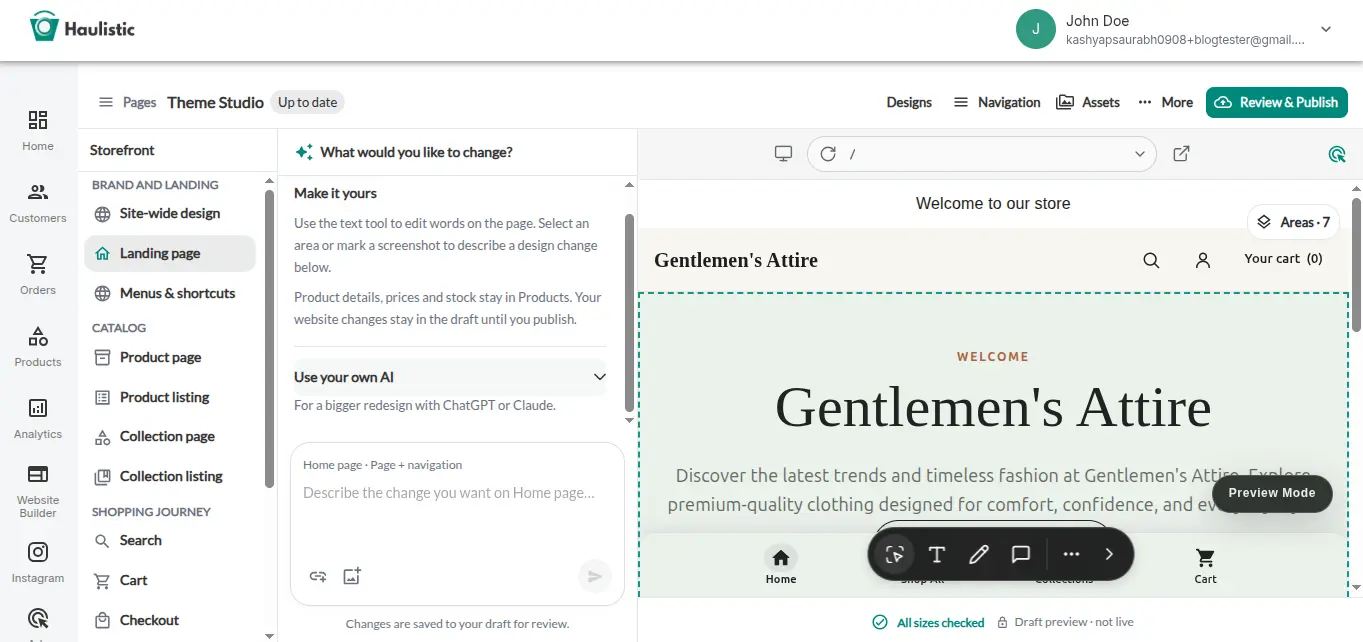
In the Theme Studio workspace, open Pages to show the Storefront list. It groups the areas you can work on: Site-wide design, Landing page, and Menus & shortcuts under Brand and landing; Product page, Product listing, Collection page, and Collection listing under Catalog; and Search, Cart, and Checkout under Shopping journey. Select an area to view its design and preview. Changes to shared styling or navigation can affect several pages, so check more than one page afterward.
Start with the Landing page, then review a product page, a collection page, and the cart and checkout flow. Theme Studio lets you customize the presentation of these pages. Product details, prices, and stock are managed in Products, while collection content is managed in Collections. The editing area and storefront preview help you see which page you are changing.
On a smaller screen, use the Storefront, Edit design, and Preview tabs to move between these parts of the workspace.
Edit your content and design
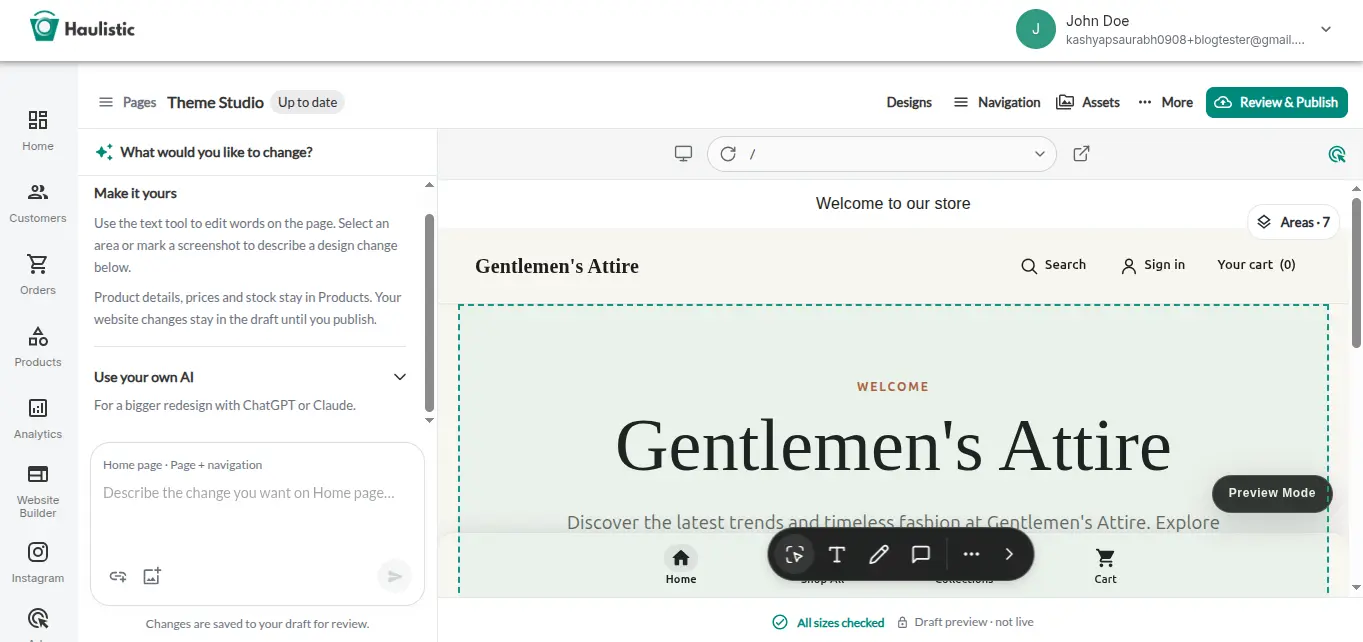
Select a section in the page list or preview to inspect it. Use the Text tool to see where its words are managed. Some text is connected to your store data. If Theme Studio says to update it from Products, Collections, or Pages, make the change in that part of the dashboard instead. For text that Theme Studio lets you edit directly, update the content and save it to your draft.
Theme Studio also offers Designs, Navigation, and Assets in the workspace toolbar. Use Designs to explore available starting designs, Navigation to review your storefront menu, and Assets for the images used in your design. Save or discard any open edits before switching designs or publishing.
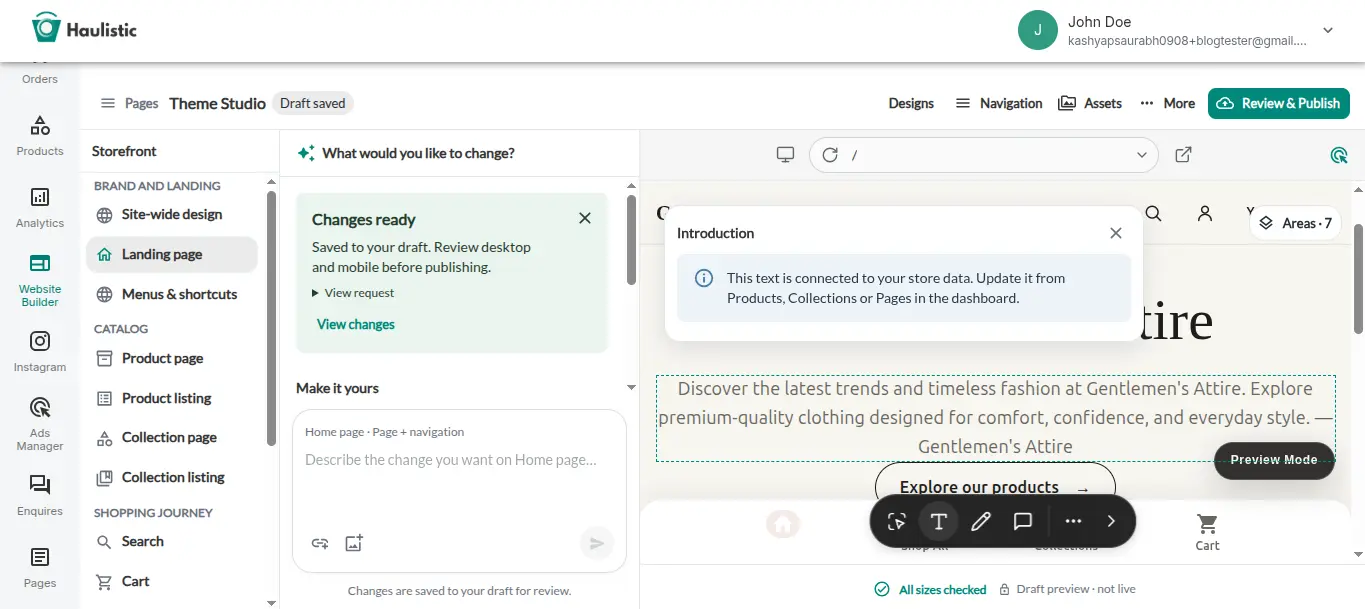
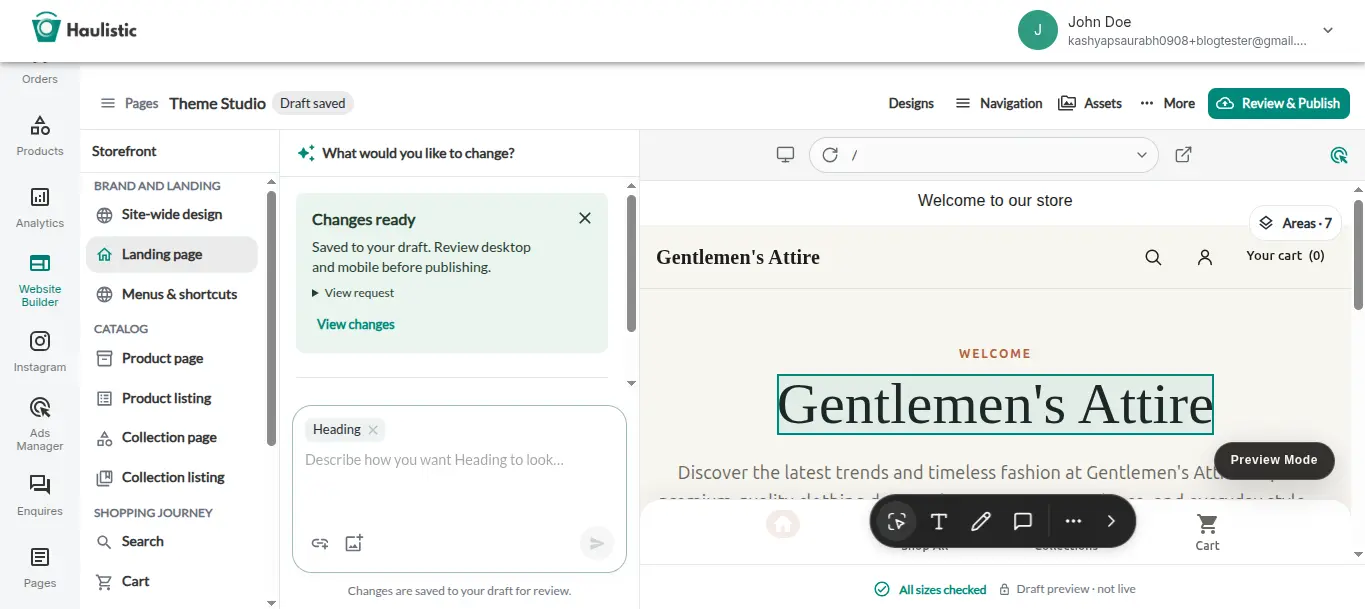
When you select an element in the preview, Theme Studio outlines it and shows tools for that selection. Use the outline to confirm you are working on the intended part of the page.
Preview the storefront
Use the preview to check each page before publishing. Review the layout at desktop and mobile sizes, and follow the main shopping path: open a collection, view a product, add it to the cart, and continue toward checkout. Look for cut-off text, hard-to-read images, and links that go to the wrong page.
If the preview needs to reconnect, refresh the preview session in Theme Studio and check the page again. A draft preview lets you inspect changes without changing the live storefront.
Review and publish your changes
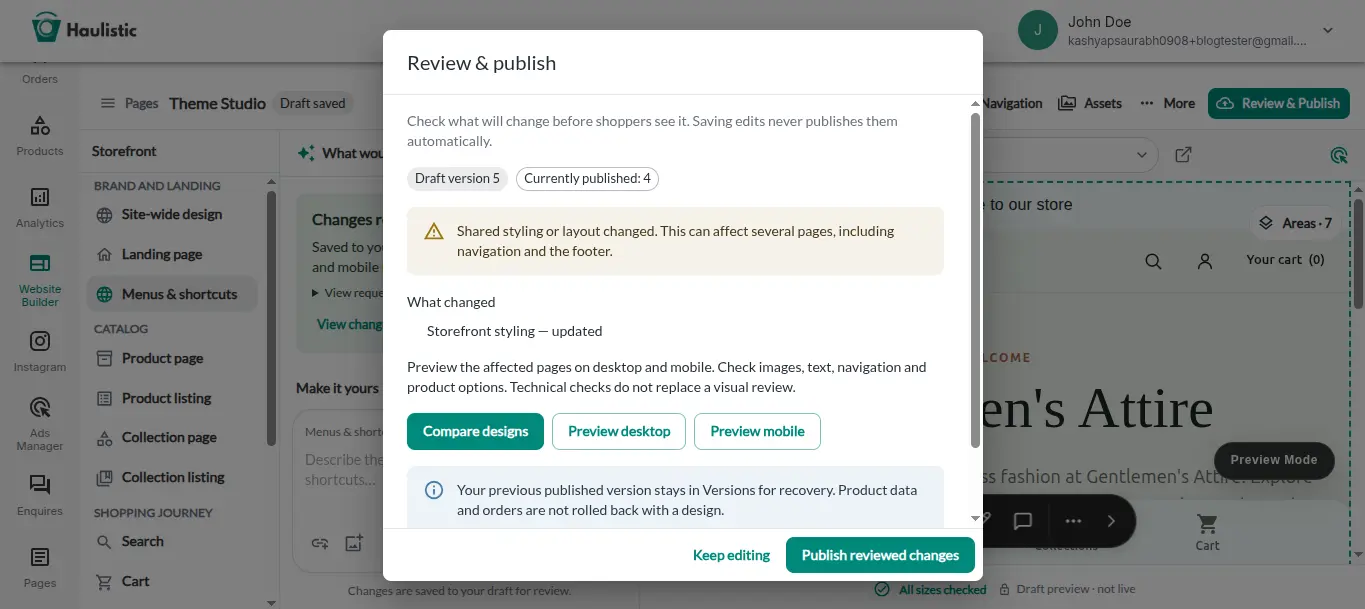
Once your edits are saved and the preview looks right, select Review & Publish. The review shows the draft version, what will change, and any checks that need attention. Fix any flagged starter content or design issues, then return to the review. Confirm the review and select Publish reviewed changes when you are ready for shoppers to see the new design.
After publishing, open your live storefront and check the same pages and shopping path once more. You can find earlier storefront designs in Version history if you need to review them later.