
How to customize your storefront with Classic Home Builder
Classic Home Builder lets you arrange the sections of your Haulistic home page and edit what each section shows. It is useful for shaping the first page shoppers see: your announcement, hero images, featured collections, brand highlights, and other home page content. You can preview your draft before publishing it.
Open Classic Home Builder
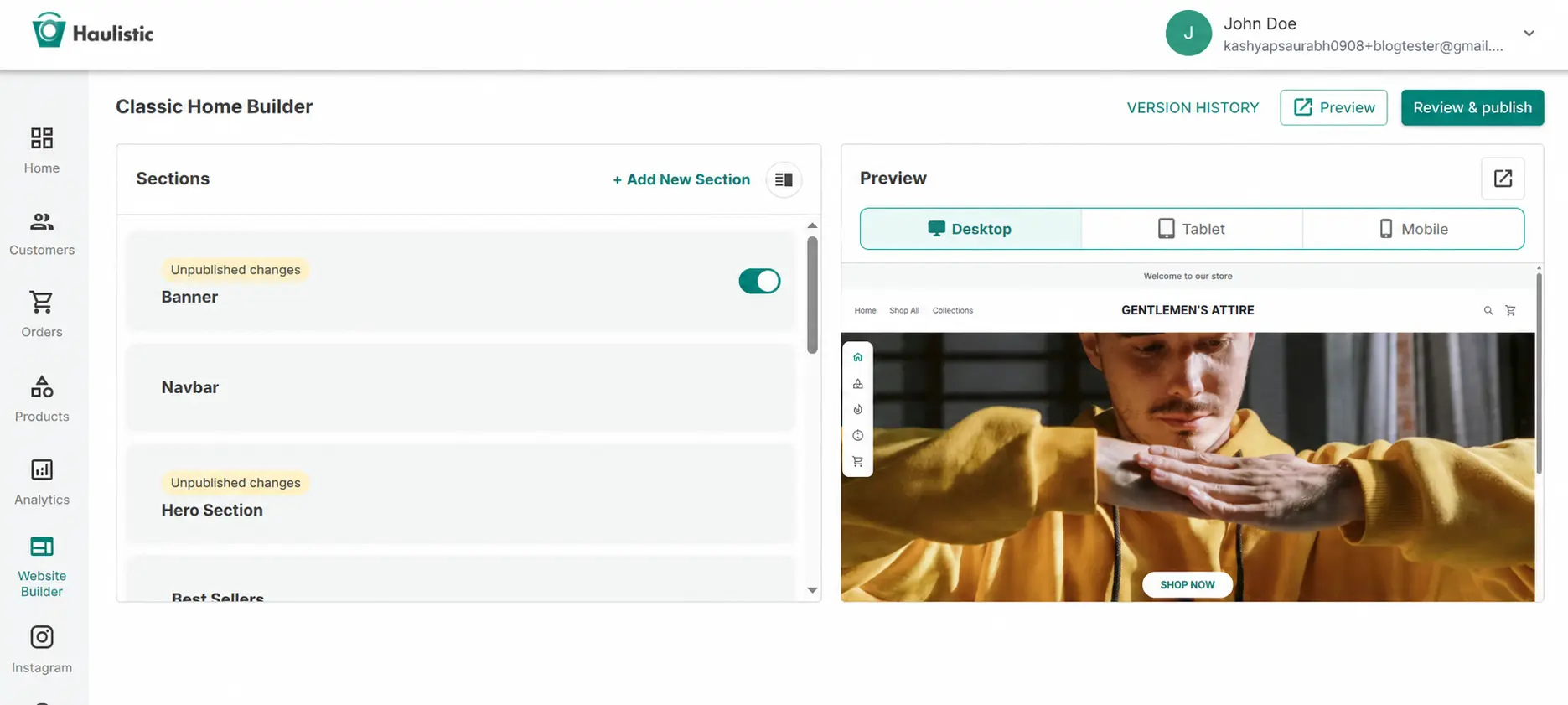
Sign in to your seller dashboard, open Website Builder in the left navigation, and select Classic Home Builder. The Sections list is on the left, with a storefront Preview on the right.
If your current draft uses Theme Studio, you will first see Switch to Classic Builder. Switching creates a Classic draft and keeps your Theme Studio design in Version history. Your live storefront does not change until you publish the Classic draft. Make sure you want to work in Classic before switching.
Choose and arrange your home page sections
The Sections list shows the parts of your home page. Open a section to edit its settings. For example, Banner controls the top announcement strip, Hero Section holds cover images and an optional Shop Now button, and Footer contains footer links and store information. Other sections can highlight collections, products, reels, your brand story, or customer benefits.
Use a section's switch to show or hide it when that control is available. Drag a movable section in the main body of the page to change its order, then check the preview to see how the page flows. Keep the most useful information near the top: what you sell, why shoppers should trust you, and where they can start browsing.
Add a new section
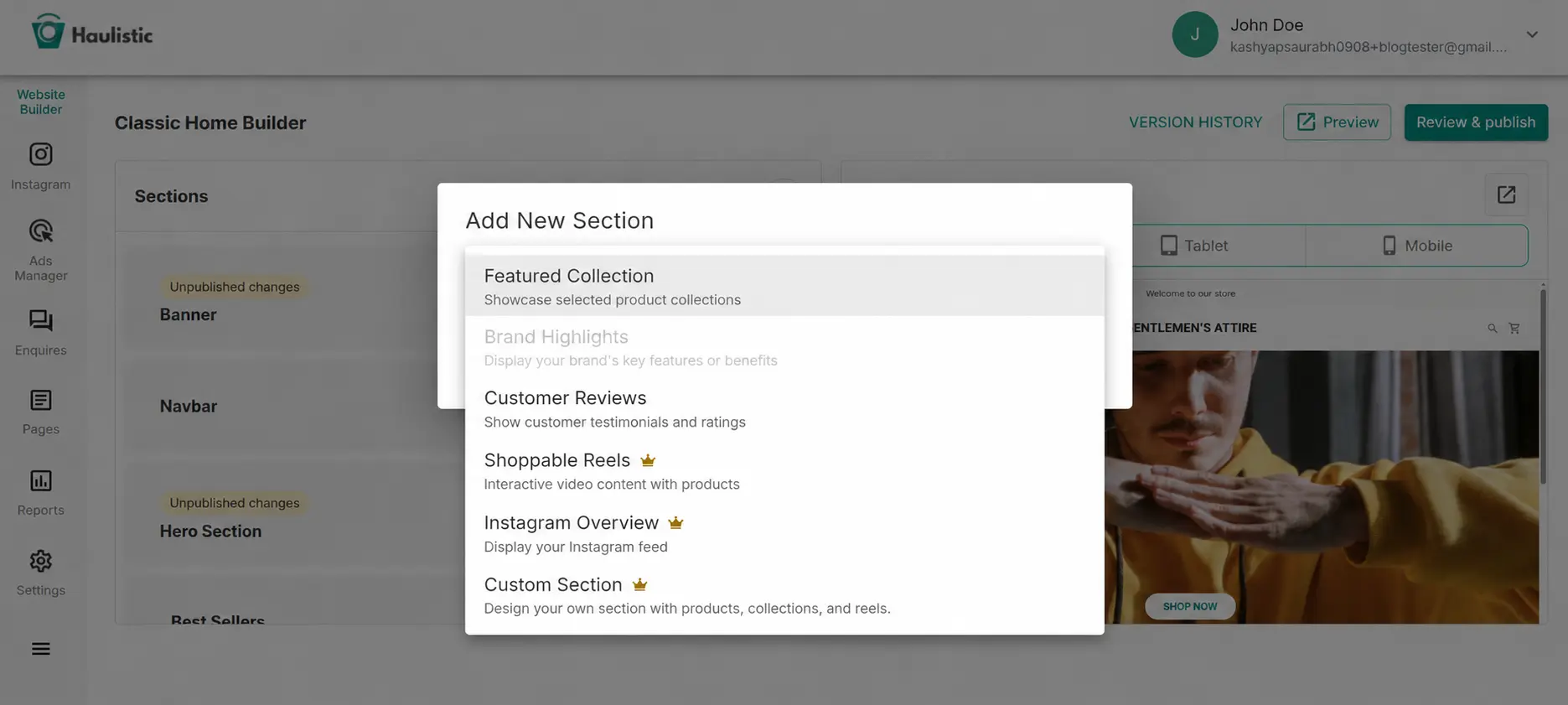
Select + Add New Section above the Sections list. The picker offers options such as Featured Collection, Brand Highlights, Customer Reviews, Shoppable Reels, Instagram Overview, and Custom Section. Some options depend on your plan, and a section already on the page may not be available to add again. Choose a section and select Save.
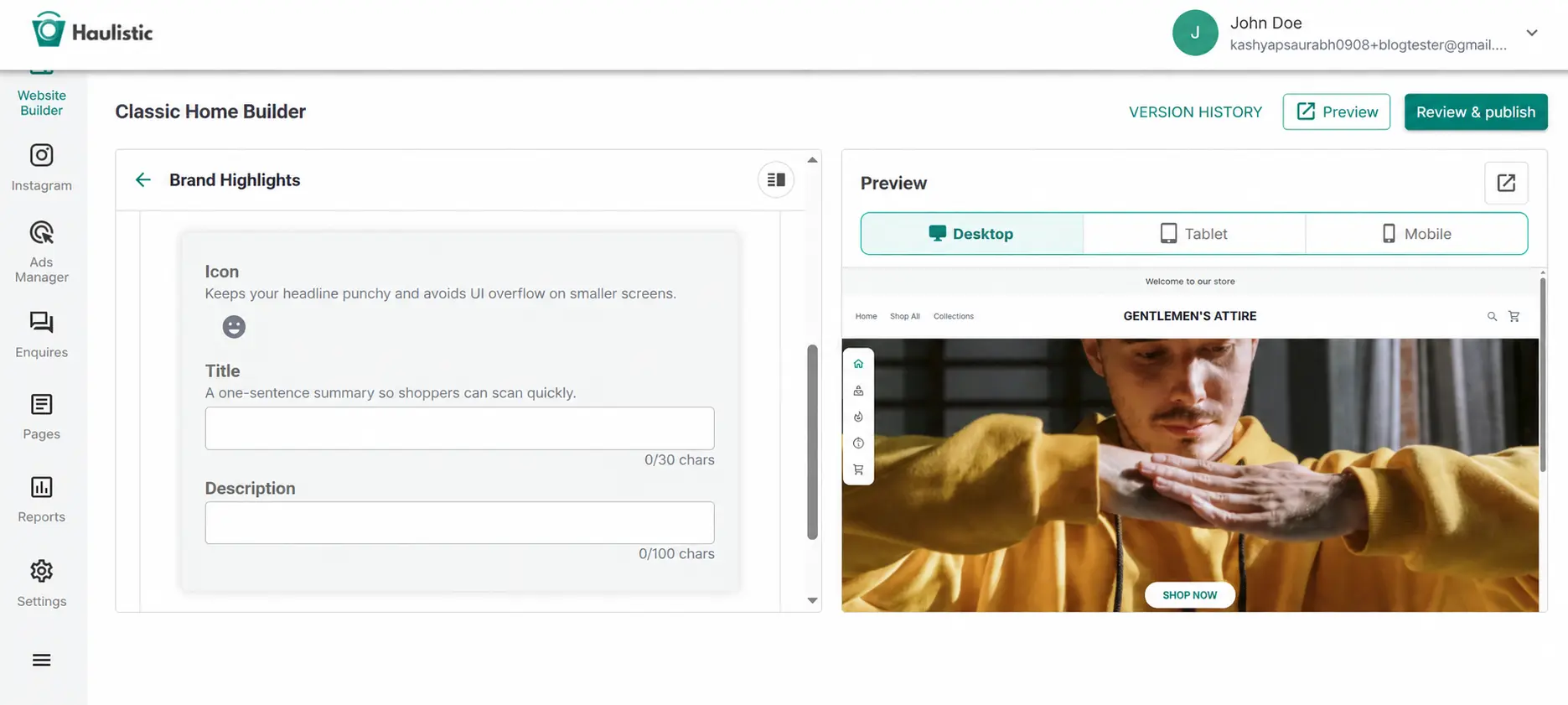
The new section appears in the list. Open it to set its content and layout. For example, Brand Highlights lets you choose an icon and write a short title and description for each benefit. Only use claims your store can deliver. For detailed steps, see How to Add Brand Highlights to Your Website.
Check the preview at each size
Use the Desktop, Tablet, and Mobile controls above the preview. Check that important text is readable, images are not awkwardly cropped, and buttons remain easy to use at each size. Select Preview for a closer look at the draft storefront.
Home page sections can feature products and collections, but their product details, prices, and stock are managed in the dashboard's Products area. Check those listings separately before sending shoppers to your store.
Publish when the draft is ready
Saving a section keeps the change in your draft. When the page looks right, use the top-right publish control. If you switched from Theme Studio, the button says Review & publish and opens a review before you confirm. On a Classic draft, it may say Publish Changes. Follow the review shown for your draft, then open your live storefront to confirm the home page and links work as intended.
Version history keeps earlier storefront designs available to review or restore. Publishing a design does not roll back your products, prices, inventory, or orders.