
How to Add Categories for Your Products on Haulistic
Product categorization is a crucial aspect of running a successful online store. It helps customers navigate your inventory easily and creates a more organized shopping experience. If you're using Haulistic to power your online store, this guide will walk you through the simple process of adding categories to your products.
What Are Product Categories?
A product category is a classification system that groups similar products together. Categories help differentiate your products from one another and make it easier for customers to find what they're looking for.
For example, if you're running a clothing brand that sells various types of skirts—short skirts, long skirts, and wrap skirts—all of these products would logically fall under the "Skirts" category. This grouping makes sense to customers and helps them browse your offerings more efficiently.
Getting Started: Setting Up Your Store
Before you can add categories, you'll need to log in to your Haulistic account and complete your basic store setup. Once your store foundation is in place, you can begin adding products and organizing them into categories.
Adding Categories While Adding Products
The most straightforward way to create categories in Haulistic is during the product addition process. Here's how it works:
Step 1: Navigate to Product Addition
From your seller dashboard, locate the section that allows you to add new products. This is typically prominently displayed and easily accessible from your main dashboard.
Step 2: Fill in Product Details
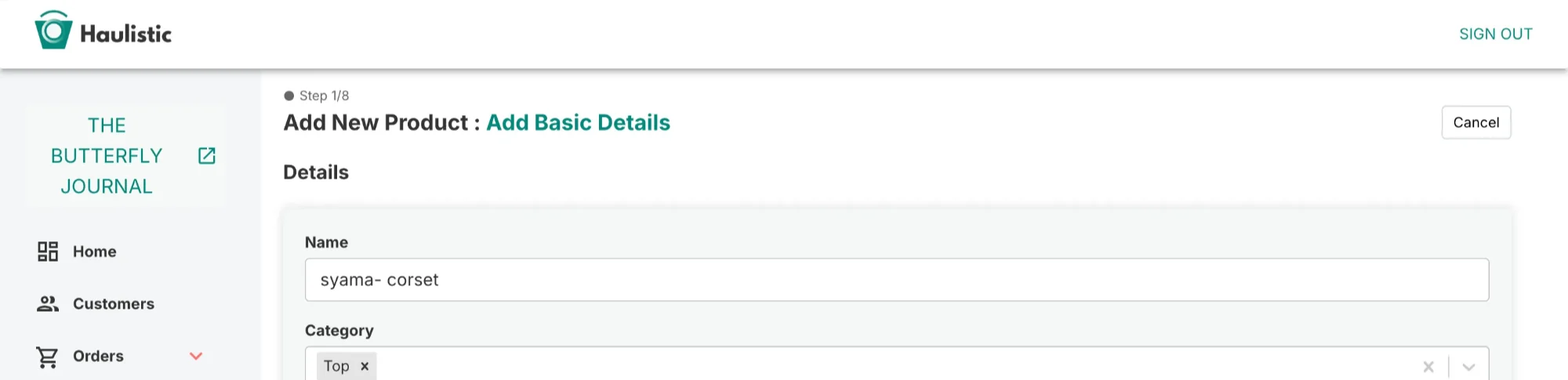
As you add your product information, you'll encounter a section that asks what category your product belongs to. This is where the magic happens.
Step 3: Create or Select a Category
Let's say you're adding a long skirt to your clothing store. In the category section, you would type "Skirts" or "Bottom Wear" and hit enter. This action serves two purposes:
- It assigns your current product to that category
- It creates the category "Skirts" or "Bottom Wear" in your store's system
Step 4: Future Category Selection
Once you've created a category, it becomes available for future use. The next time you add a similar product, the category will appear as a selectable option, streamlining your workflow.
Managing Categories from Your Dashboard
Haulistic provides a dedicated section for category management that gives you complete control over your product organization.
Accessing the Category Section
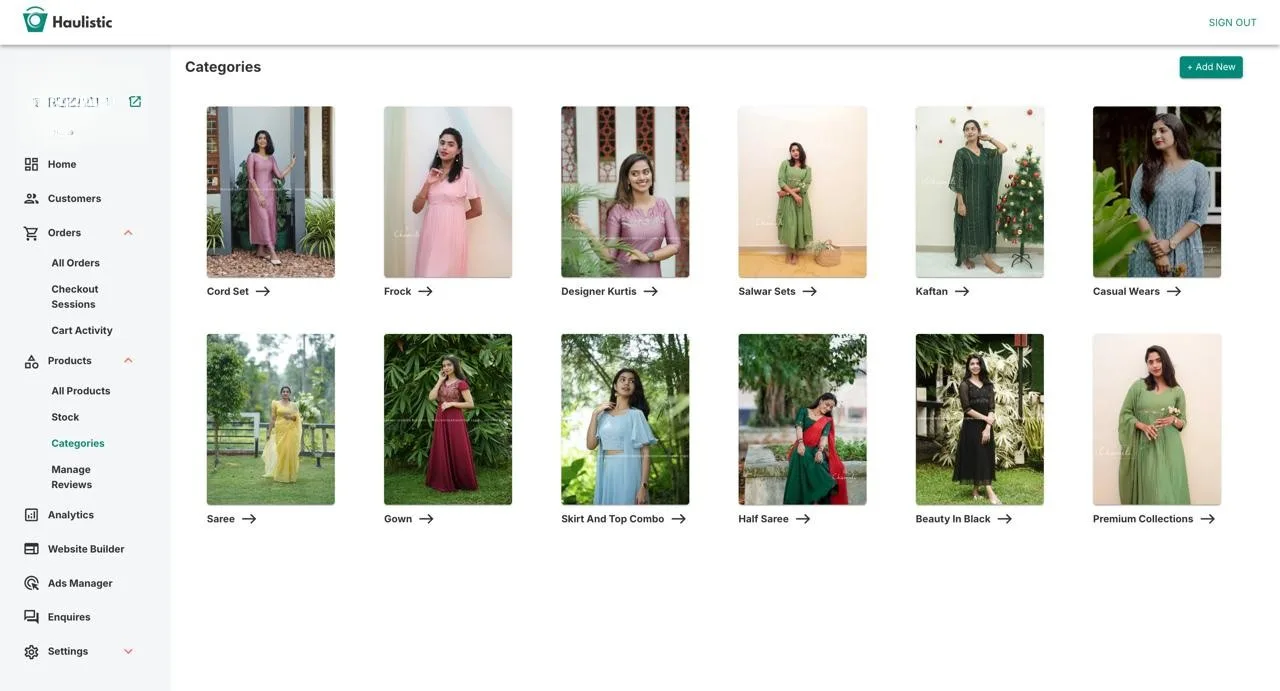
On the left panel of your dashboard, you'll find various options and tools. Look for the "Category" option—this is your central hub for category management.
What You'll Find in the Category Section
In this section, you can:
- View all your existing categories in one place
- See which products are assigned to each category
- Make changes to category names or organization
- Monitor how your products are grouped
Product Population
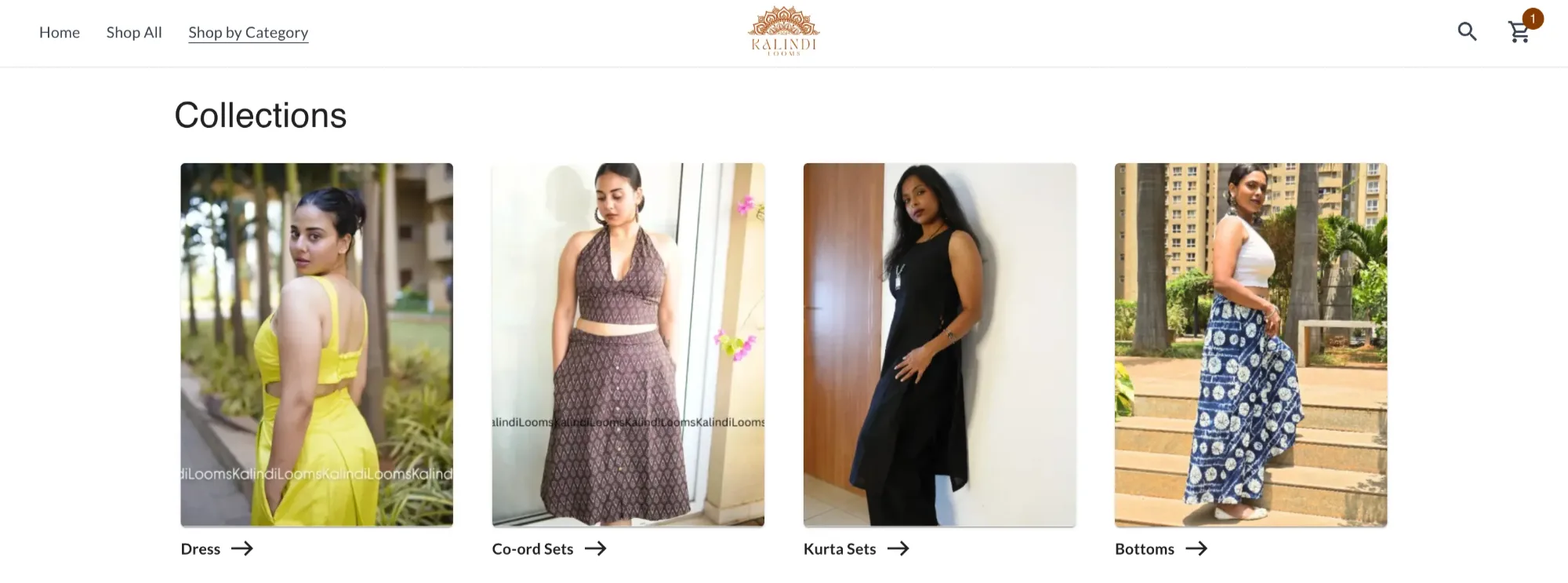
All products that share similar characteristics will automatically populate under their assigned category. This organization is then reflected in how products are displayed to your customers on the front end of your store.
Best Practices for Product Categorization
To make the most of Haulistic's category system, consider these tips:
Be Consistent: Use consistent naming conventions for your categories. Decide whether you'll use "Skirts," "Bottom Wear," or another term, and stick with it.
Think Like Your Customers: Create categories that make sense from a customer's perspective. How would they naturally search for your products?
Keep It Simple: Avoid creating too many narrow categories that might confuse customers. Strike a balance between specificity and simplicity.
Plan Ahead: If you're just starting out, think about your future product lines and create a category structure that can grow with your business.
The Impact of Good Categorization
Proper product categorization does more than just organize your inventory—it enhances the entire shopping experience. Customers can quickly find what they're looking for, discover related products, and navigate your store with confidence. This improved user experience often translates to higher conversion rates and customer satisfaction.
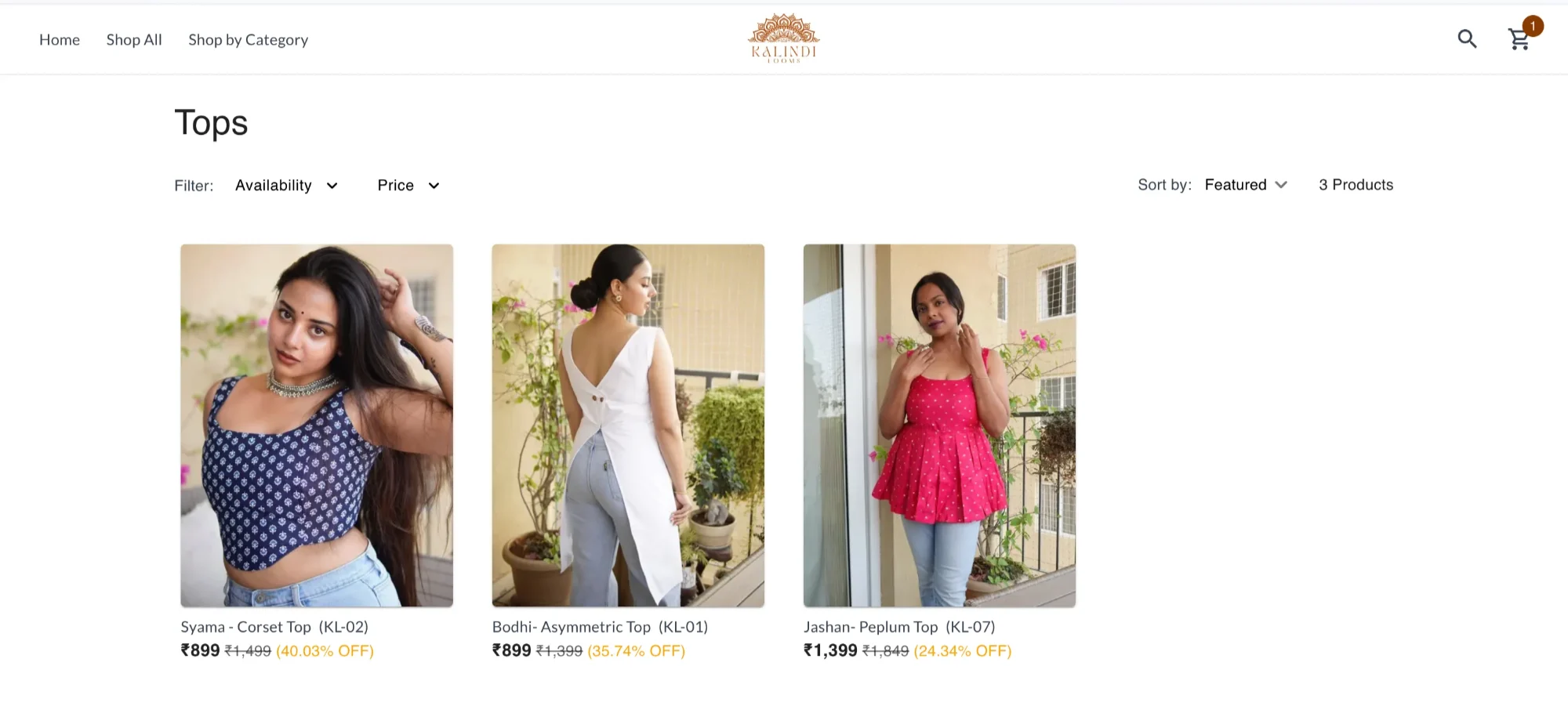
Adding categories to your products in Haulistic is a straightforward process that pays dividends in store organization and customer experience. By taking advantage of the platform's intuitive category system—whether you're adding categories during product creation or managing them through the dedicated category section—you'll create a more professional and user-friendly online store.
Remember, good categorization is an ongoing process. As your product line grows and evolves, regularly review and refine your categories to ensure they continue to serve both you and your customers effectively.
Guide details
Reading time
4 min read
Published
July 8, 2025
Topic
Products